Troubleshooting
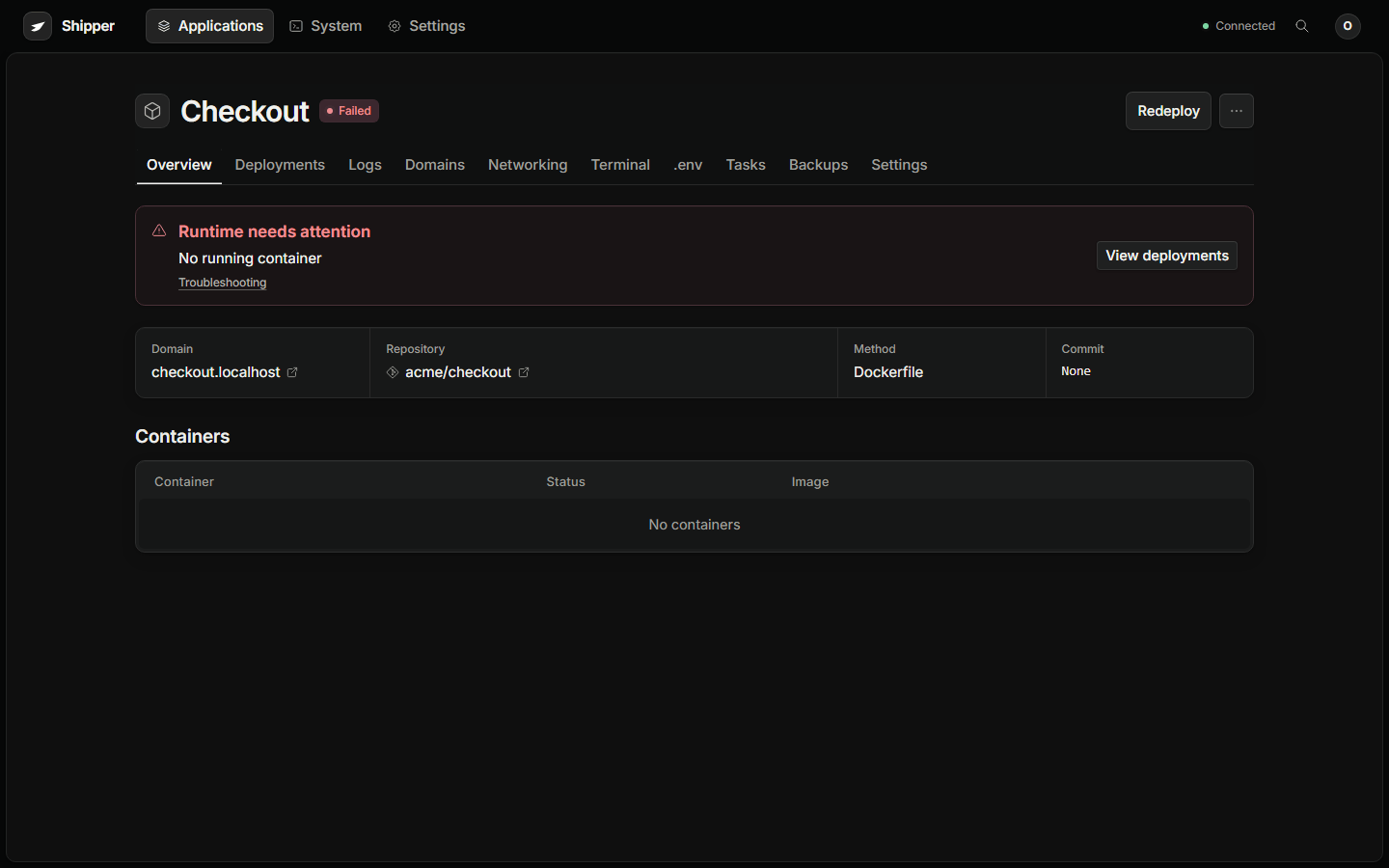
Use the application’s Overview issue alert, deployment logs, runtime logs, and System → Overview health cards to identify the failed layer. This page maps each symptom to the next action.
Build fails
Section titled “Build fails”Open the failed deployment and choose Show failed step. Read the first error, not the final exit code.
Common causes:
- The Dockerfile expects a file excluded from the build context.
- A dependency needs a native library not present in the builder.
- A build argument is missing, or a secret should be a BuildKit mount.
- Railpack detected the wrong toolchain or lockfile.
- The build runs out of memory or disk.
Check the build method in the review. An explicit method overrides automatic selection. For a static site, confirm the publish directory contains the built output, not the source.
Container exits immediately
Section titled “Container exits immediately”docker ps -a --filter label=io.shipper.application.id=<application-id>docker logs --tail 200 <container-name>docker inspect <container-name> --format '{{json .Config.Entrypoint}} {{json .Config.Cmd}}'Common causes:
- The app binds to
127.0.0.1instead of0.0.0.0. - The start command assumes a working directory or file not in the image.
- A required environment variable is missing.
- The process runs as a user without permission to write its data directory.
- The image entrypoint is a shell that exits when the command is empty.
Fix the source or configuration, then redeploy. Editing a running container is not a supported fix.
Readiness fails
Section titled “Readiness fails”The candidate must answer its health request within the startup deadline. The default is 45 seconds, plus the startup-command timeout when configured.
Check:
- The path returns
200or the expected success status. - The app listens on the port Shipper routes to.
- The health check does not depend on a database that is still starting.
- The startup time is not longer than the deadline.
- The app does not require a hostname or TLS URL during startup.
A health endpoint that redirects to HTTPS can fail inside the container. Provide a plain HTTP endpoint for readiness.
Route returns 502 or 504
Section titled “Route returns 502 or 504”The container may be running while the route points at the wrong port or hostname.
- Open Domains and confirm the primary hostname and route target.
- Check the Overview issue alert or open Domains directly.
- Run Domains → Verify.
- Inspect the service port and the container’s listening port.
- Inspect the proxy logs if DNS is correct.
docker logs --tail 200 shipper-<instance-prefix>-proxyA 503 can be deliberate maintenance mode. Check the route options before treating it as a failure.
HTTPS warning or certificate failure
Section titled “HTTPS warning or certificate failure”- DNS resolves to this server.
- No unreachable AAAA record.
- Ports 80 and 443 are reachable.
- The hostname is not claimed by another application or the old host.
- The ACME challenge path is not intercepted by another proxy.
- The certificate has not hit a rate limit.
Domains → Verify records the issuer, expiry, DNS result, and release identity. A successful verification can still show a warning for an expiring certificate. Renewal requires ports 80 and 443 to stay reachable.
Task or migration failed
Section titled “Task or migration failed”Open the task result in the application. Lifecycle stages are:
- Before deploy: runs before the new image is built or after checkout, depending on the operation.
- Before start: runs in the foreground container before the main command.
- After deploy: runs after promotion.
- Before stop: runs before the serving container stops.
A failed before-deploy task blocks the release. A failed after-deploy task runs after traffic has moved, so the release may be serving while the task is marked failed. Read the stage before deciding whether to roll back.
Dependency network is missing
Section titled “Dependency network is missing”For Compose applications, confirm:
- The dependency service is running and healthy.
- Both services are on the same Compose network.
- The dependency name in the app configuration matches the service name.
- A one-shot dependency completed successfully.
A network connection only proves reachability. A database may still reject the application’s credentials or schema.
Docker is unreachable
Section titled “Docker is unreachable”If the instance daemon check fails, application checks are downstream symptoms. Fix Docker first. Do not restart every application.
systemctl status docker --no-pagerdocker infosudo systemctl restart dockersudo systemctl restart shipper.serviceEverything is slow or stale
Section titled “Everything is slow or stale”- Check
df -h /var/liband the storage check. - Check
docker system dffor image and build cache pressure. - Check host memory and CPU.
- Recheck the inventory.
- Look for a stale observation time.
Shipper keeps the last complete inventory visible when Docker disconnects and marks it with a warning. Cached data is not a fresh observation.
Evidence to collect
Section titled “Evidence to collect”sudo shipperctl statussudo shipperctl logssudo journalctl -u shipper.service -n 300 --no-pagerdocker ps -adocker volume lsdocker system dfdf -hcurl -fsS http://127.0.0.1:8080/api/healthInclude the Shipper version, the exact application and release ID, the failed check, the failed stage, and the first error line. Report observed facts separately from guesses.
What not to do
Section titled “What not to do”- Do not run
docker system prune,docker volume prune, or delete/var/lib/shipperto clear an error. - Do not remove application volumes to force a redeploy.
- Do not run the original and recovered Shipper instances against the same Docker daemon.
- Do not edit a running container and call it fixed.
- Do not restore a database over a database that accepted writes after the backup.
- Do not treat a running container as proof that the route, certificate, or application protocol works.